Recently CodePlex updated their TFS to the 2010 version, during the update your reference TFS server may have changed name (like it happened for Dexter, our original TFS server was tfs05.codeplex.com and now it is tfs.codeplex.com).
To switch to the new server all I did was, open your solution in Visual Studio, it will open in offline mode due to the fact that the old TFS is no more accessible.
After that go to: ‘File --> Source Control --> Workspaces...’
You will be prompted with a dialog that asks for a new TFS address and new access credentials, take those from your CodePlex project website.
Once connected a new Dialog Box will open allowing you to select the project to which link your solution among all the Team Project Collections available to your account.
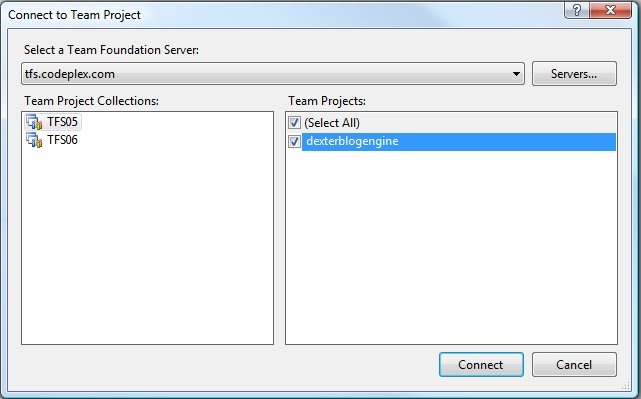
Select Connect and check if your workspace has been associated correctly.
To make the change fully effective, close and reopen your solution, you will be asked if you want to ‘Go Online’.
That’s all you need to do in order for having your TFS integration work again after the CodePlex upgrade.
Related Content
- NUnitit: Visual Studio Addin to support NUnit and some customizations to it (26/08/2015)
- Resharper and the OutOfMemoryException problem (26/08/2015)
- Spot Hidden Exceptions using IntelliTrace (26/08/2015)
- Visual Studio 2010 designer error: Value cannot be null. Parameter name: objectType (26/08/2015)
- VS2008 SP1 + PowerCommands = Toolbox AddItems...Crash! (26/08/2015)
- More related document (10)